
Video and animation
Video and animation rendering on a cloud RTX 5080
Comps, edits, exports and animation frames run on a rented Windows workstation while your laptop shows the stream and stays free. After Effects and Premiere Pro on your own Adobe account; Blender preinstalled; walkthroughs from D5 Render, Lumion, Twinmotion and Unreal finished on the same machine.
Your first $20 top-up buys 8 hours on the workstation. After that it is $5.99 an hour, no GST, billed per minute.
By the Coreframe Cloud team · Published · Updated

What you can render
Four kinds of work, one machine.
Blender animation
Frames on the card, video on the same machine.
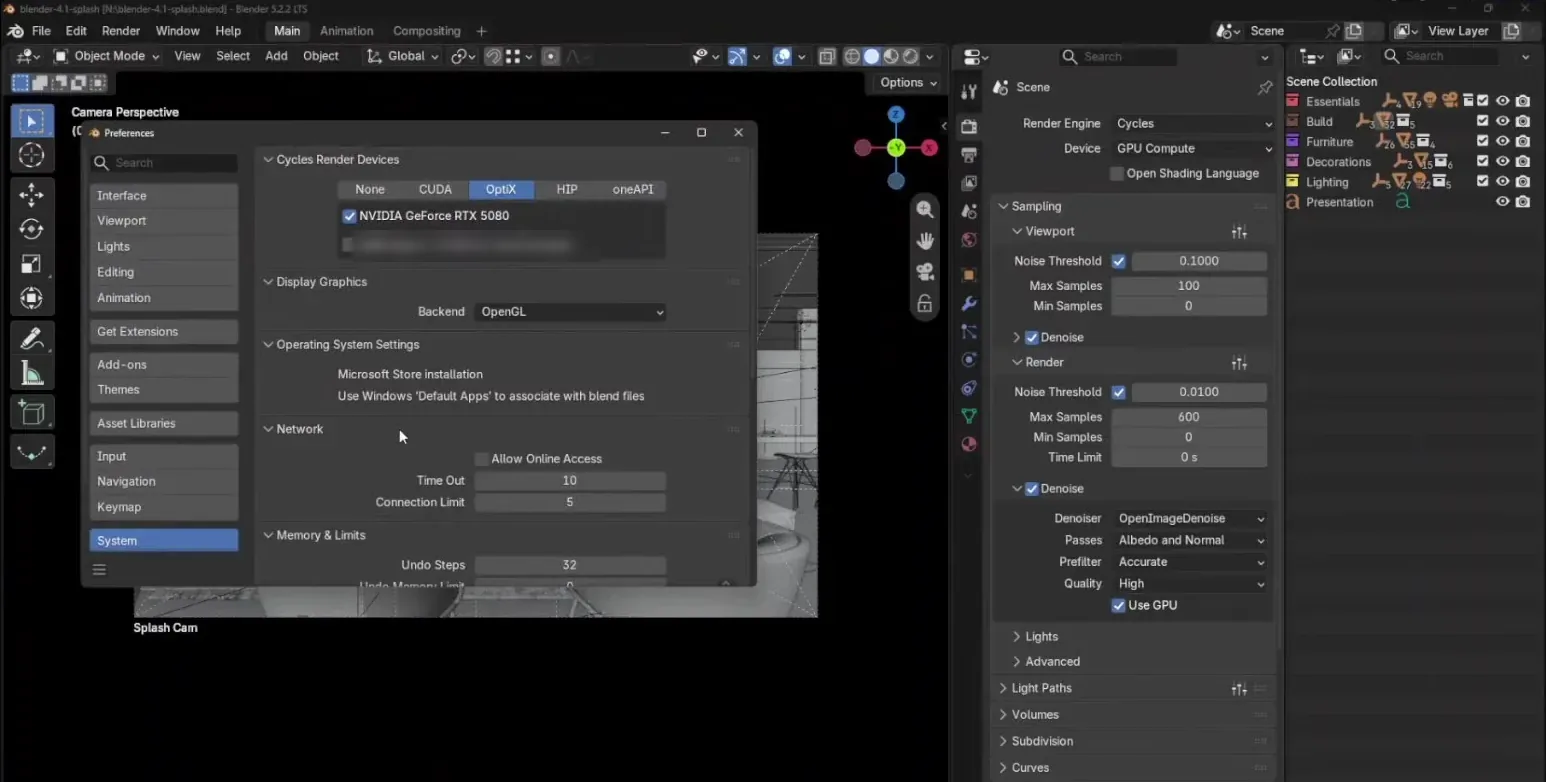
In Blender’s preferences choose OptiX, which uses the RTX card’s ray-tracing cores, and set Cycles to GPU Compute. Render the animation as an image sequence to your project drive, so a frame finished is a frame kept, then join the sequence into a video with FFmpeg or HandBrake before you download it.
It is one GPU. For a long animation of hundreds of frames, a render farm that splits frames across many machines will often be the better choice, and we have written up where each one wins.
What to plan for
Four things to sort out before a deadline.
The work runs well on a remote machine. The footage and the stream are what need planning.
- Get the footage up first
- Footage travels over your own internet connection to your persistent project drive, so your upload speed is the limit: 100 GB at a steady 50 Mbps takes about four and a half hours. The Files tab in Coreframe Connect works without a workstation running and uploading is not billed, so send it the night before.
- Judge colour on the export
- You see the desktop as a compressed stream at up to 4K at 60 fps. It is fine for editing, timing and motion, not a calibrated reference signal. Make final colour calls on the downloaded file.
- Fonts and caches start fresh
- Every session starts from a clean machine. Keep the project's fonts in a folder on your drive and install them at the start of a session; point the disk cache at the local drive, which is cleared when the session ends.
- Your connection
- 4K at 60 fps looks its best on about 50 Mbps and holds up at 35; 1080p is comfortable on 20 Mbps. If the stream drops, the workstation keeps running and Connect holds it for 15 minutes so you can reconnect.
The full version, with screenshots: After Effects on a remote GPU: what works and what doesn’t.
Where it fits
And where it doesn’t.
- Fits: motion graphics, short-form edits, comps that need more GPU or RAM than your laptop has, and exports you would rather not run on the machine you are working on.
- Fits: finishing a walkthrough on the machine that rendered it.
- Doesn’t: hundreds of frames spread across many machines at once. That is a render farm’s job.
- Doesn’t: long-form work with terabytes of camera originals and a reference monitor. The upload and the stream are the wrong tools for that.
The machine
What you are renting.
| GPU | 1× RTX 5080 |
|---|---|
| VRAM | 16 GB |
| CPU | 8 CPU cores |
| System RAM | 64 GB |
| Storage | 1 TB NVMe |
| Operating system | Windows 11 |
| Streamed to you | 4K at 60 fps, through the Coreframe Connect app |
| Location | Bengaluru, India |
| Price | $5.99/hr, no GST |
A sensible first session
Test it on one real project.
- 1
Install the Connect app on your Windows laptop and create an account (email and a WhatsApp code, no ID documents).
- 2
Upload one real project and its footage to the Files tab before launching.
- 3
Launch, sign in to Creative Cloud with your own Adobe account (or open Blender), and open the project from the N: drive.
- 4
Scrub the timeline, run a preview, and queue one export or a few frames.
- 5
Download the result and check it on your own screen. Then end the session so billing stops.
Questions.
Can I render video and animation on a Coreframe workstation?
Yes. It is a full Windows 11 desktop with an RTX 5080 (16 GB GDDR7) and 64 GB of RAM. After Effects, Premiere Pro and Media Encoder run on your own Adobe account; Blender, FFmpeg and HandBrake are preinstalled; D5 Render, Twinmotion and Unreal Engine are installed for walkthroughs.
Does Coreframe provide an Adobe licence?
No. Creative Cloud is installed on the workstation and you sign in with your own Adobe account, so it runs on your own subscription.
Can I render a Blender animation on it?
Yes, on one GPU. For long animations a render farm that supports Cycles can spread frames across many machines at once, which a single workstation cannot do.
How do I get my footage onto the workstation?
Upload it to your persistent project drive with the Files tab in Coreframe Connect, which works without a workstation running. It travels over your own connection, so large camera originals take time: plan the upload before the deadline.
Where do my renders go, and do they stay?
Save them to your project drive (N:), which persists between sessions; the rest of the machine resets when the session ends. Download what you need from the Files tab.
How long will my render take?
It depends on your project, so we don't publish render times. Run one real comp, sequence or export in a short first session and time it before you plan a deadline around it.
How much does a Coreframe workstation cost?
Ad-hoc sessions are $5.99 per GPU-hour, billed per minute from the moment the stream starts, not per whole hour. Provisioning, uploads and failed connections are free. Committed monthly plans start at $203.99/month and bill extra hours below the ad-hoc rate at every tier: $4.99/hr on Small Team, $3.99/hr on Medium Team. Prices in US dollars carry no GST (export of services), and the invoice is in US dollars.
Is there an offer for new customers?
Yes. Your first top-up of $20 (no GST) buys 8 hours on an RTX 5080, to use within 30 days, one per customer. You sign up with an email and a WhatsApp code to your mobile, with no ID documents, and international cards work. We won't say what you can finish in that time, because it depends entirely on your scene.
Ready to try one project? Create an account.